TrigOne Mini / Kboard 0.1.0
Set up TrigOne Mini
One encoder, one push switch and two modes. Find setup instructions, all five Kboard tabs and practical help here.
01 / Getting started
Connect and get started.
- Connect TrigOne Mini to your computer with a USB data cable. A charging-only cable cannot carry data. A prepared controller does not need a firmware installation for normal use.
- Download Kboard for your Mac: Apple Silicon for a Mac with an Apple chip, or Intel for an Intel Mac. Open the DMG and drag the app inside it into Applications. Then launch that copy. Opening the DMG does not install the app automatically.
- Select your controller at the top of Kboard. If it is missing, reconnect it and click Refresh. The current app interface is in English; button names in this guide match the app.
- Under Controller, choose MIDI for MIDI assignments or HID for media controls and keyboard shortcuts. Review your changes and apply them with Save to Controller.
Kboard 0.1.0 requires macOS 13 or later. Downloads are free and require no account. A Windows installer has not yet been released.
02 / Controller
MIDI: put a parameter within reach.
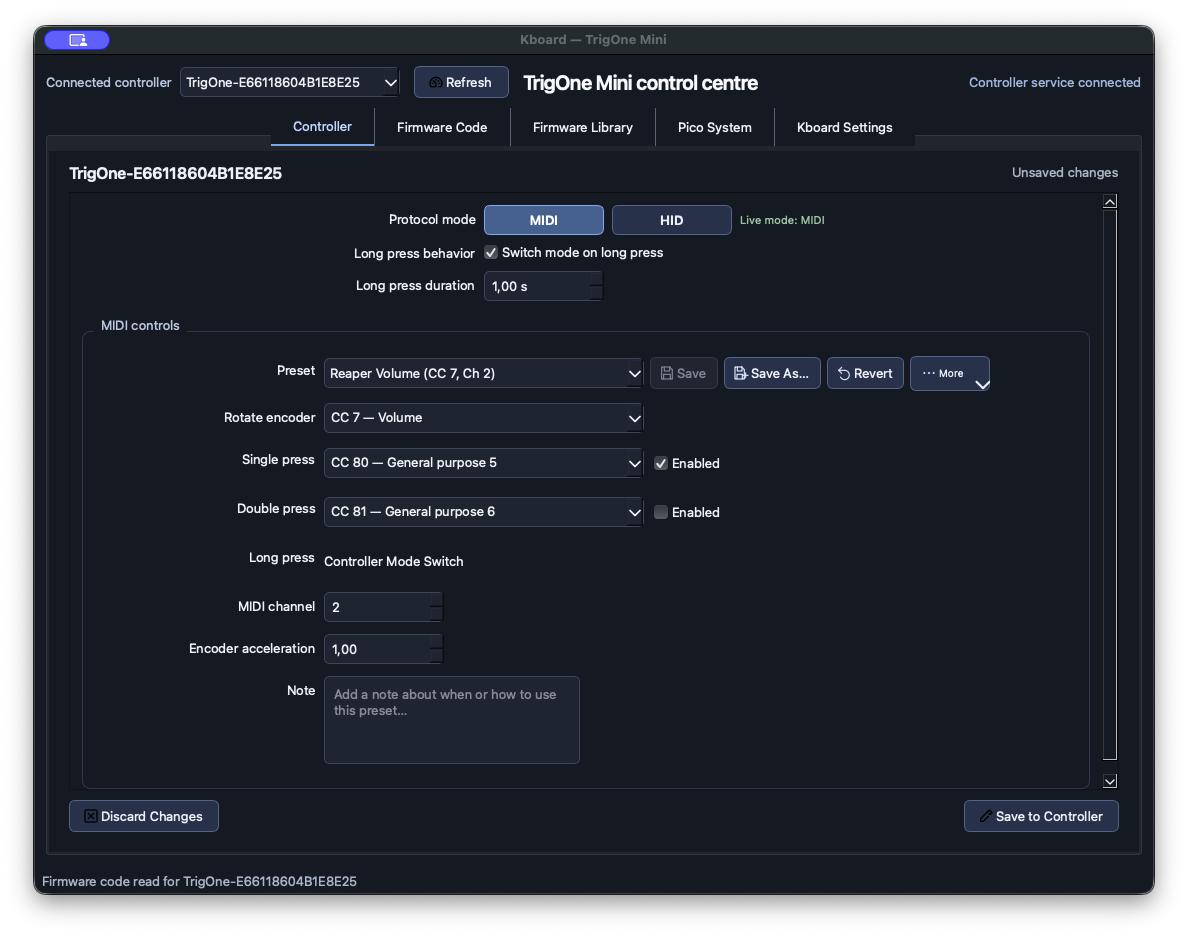
Choose MIDI and a suitable preset. Rotate encoder sets the encoder’s CC number; Single press, Double press and Long press set the press actions. MIDI CC numbers range from 0 to 127 and MIDI channels from 1 to 16. Enabled turns a press action on or off.
The default mapping uses CC 7 for rotation and CC 80 for a single press on channel 1. The screenshot shows the Reaper Volume preset on channel 2. Enable the MIDI input in your DAW and use its MIDI Learn or manual mapping function. The channel and CC must match your software.
Encoder acceleration increases the response to fast turns. The knob is an endless encoder, not a potentiometer with fixed end stops. Start with a low monitoring level when mapping volume.
03 / Controller
HID: control media and shortcuts.
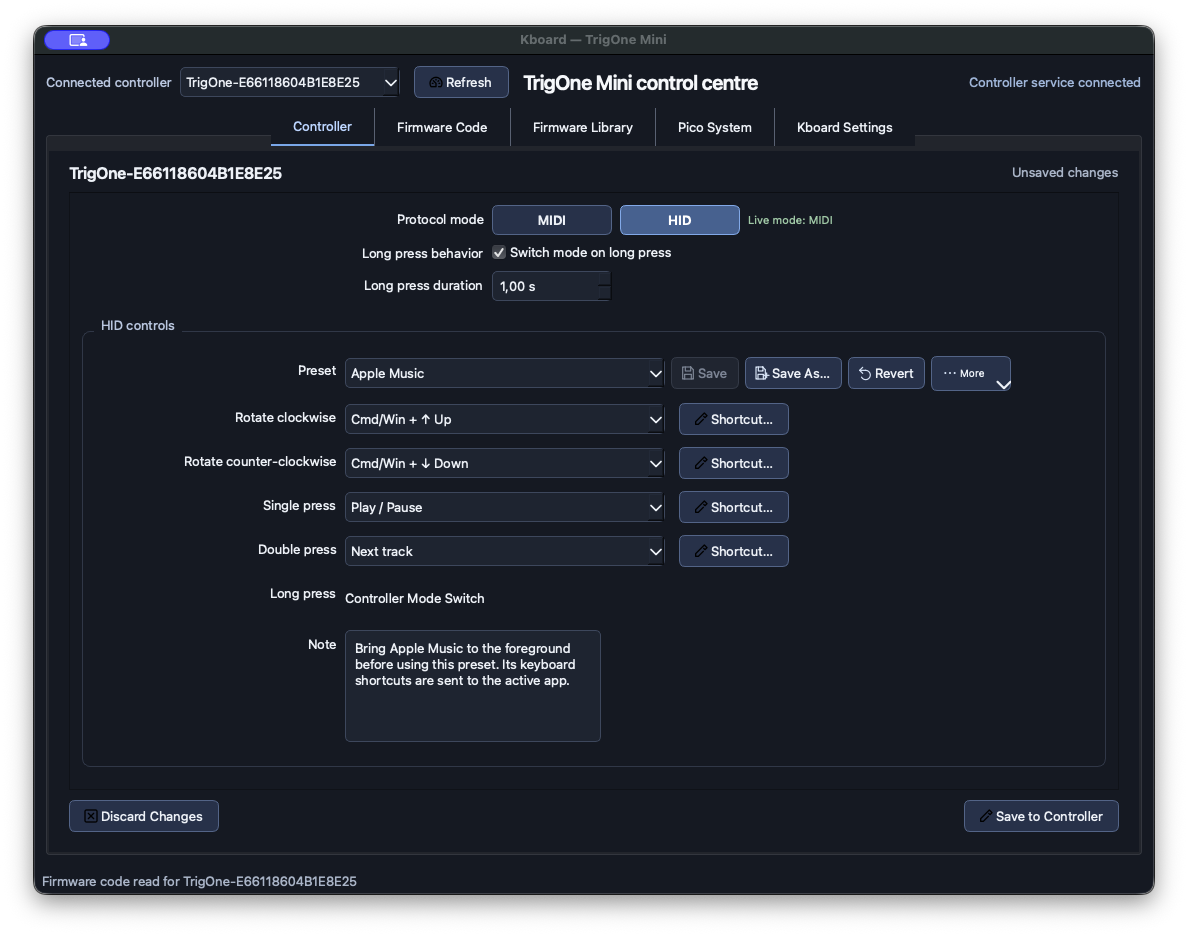
Choose HID. Assign media commands, No action or keyboard shortcuts to clockwise and counter-clockwise rotation and the press actions. Shortcut… opens the modifier and key editor, which can also capture a single keyboard chord.
Keyboard shortcuts go to the active application. For example, bring Apple Music to the foreground when using the Apple Music preset. Media commands such as Play / Pause are handled by the operating system or active media application. Keyboard layout and application behavior can affect the result.
Long press: mode switch or action
With Switch mode on long press enabled, a long press switches between MIDI and HID when released. Long press duration sets the minimum hold time. The long-press assignment then shows Controller Mode Switch and does not also send an assigned command. Disable this option if you want a separate long-press action.
Live mode shows the mode reported by the controller. The editor selection can differ while changes remain unsaved. A physical mode switch and the saved startup mode are separate states.
04 / Your settings
Prepare presets. Review before saving.
- Save As… creates a local preset, including a copy of a built-in preset. Save updates your own preset; Revert restores its last loaded or saved state in the editor.
- More contains Import and Export. MIDI and HID presets are managed separately. Note stores a preset reminder on your computer, not on the controller.
- Save to Controller opens a summary of changed settings. Confirm after reviewing it. Kboard validates the configuration, backs up the previous state and checks the data read back from the device.
- Discard Changes discards the unsaved settings draft. Saving a local preset alone does not change the controller.
05 / Advanced
Firmware Code
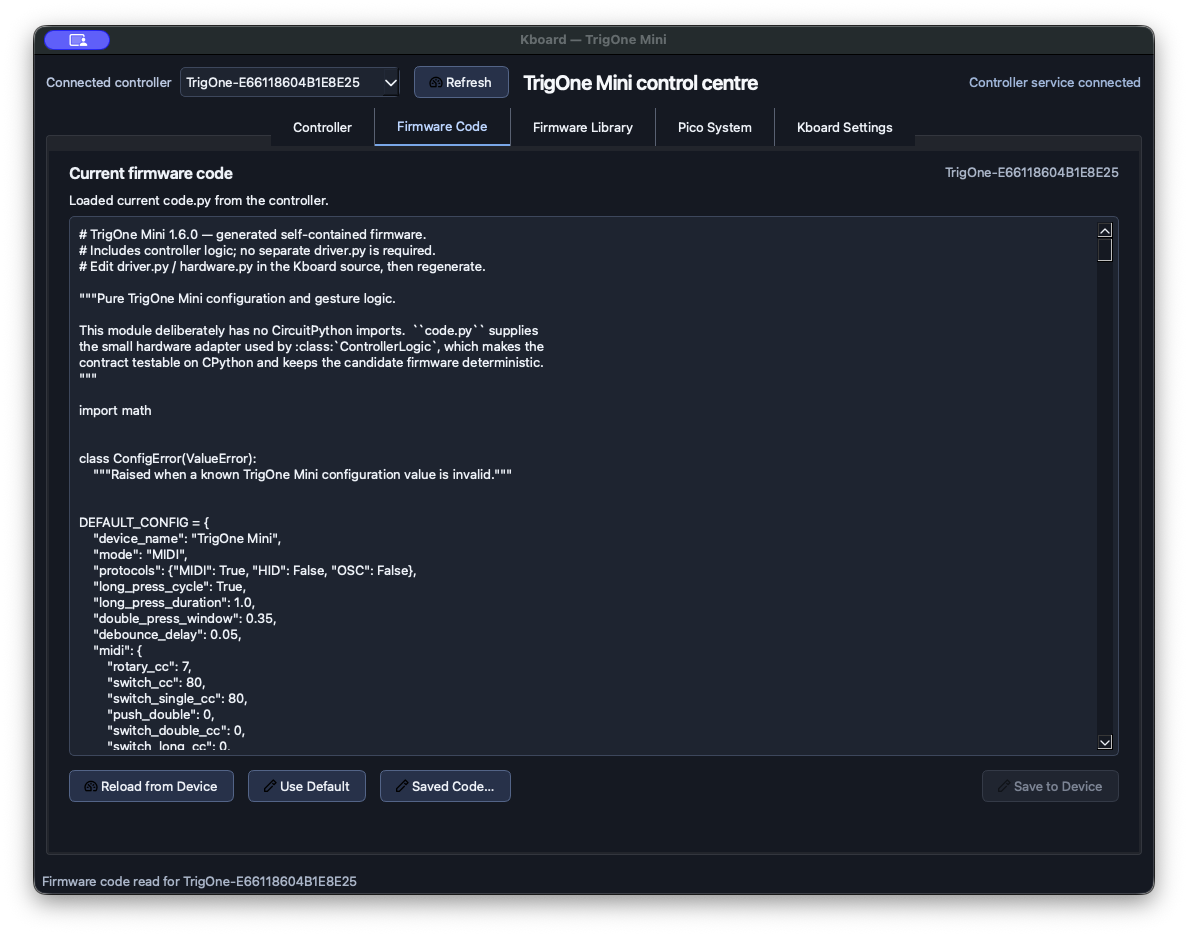
View and edit the controller’s actual code.py here. Reload from Device reads it again. Use Default loads the built-in source into the editor; Saved Code… opens saved code. These actions do not write to the device.
Save to Device is the separate write action with preview, backup and confirmation. Successful byte readback does not establish that custom code starts correctly. A working controller does not need this tab for ordinary configuration.
06 / Advanced
Firmware Library
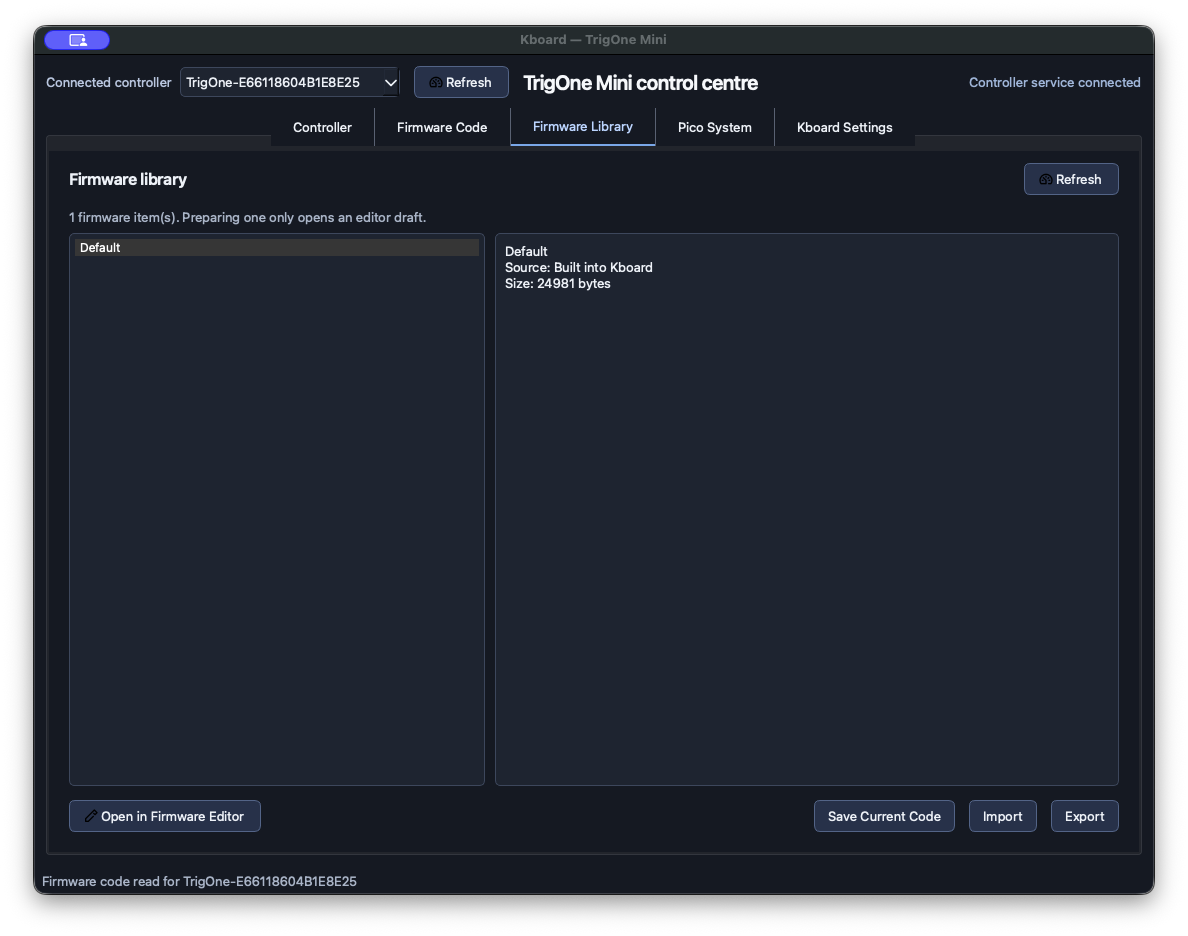
Manage built-in and locally saved firmware code. Open in Firmware Editor opens the selection for inspection or editing. Save Current Code, Import and Export manage your code library; writing to the device is a separate action in Firmware Code.
07 / Base software
Pico System
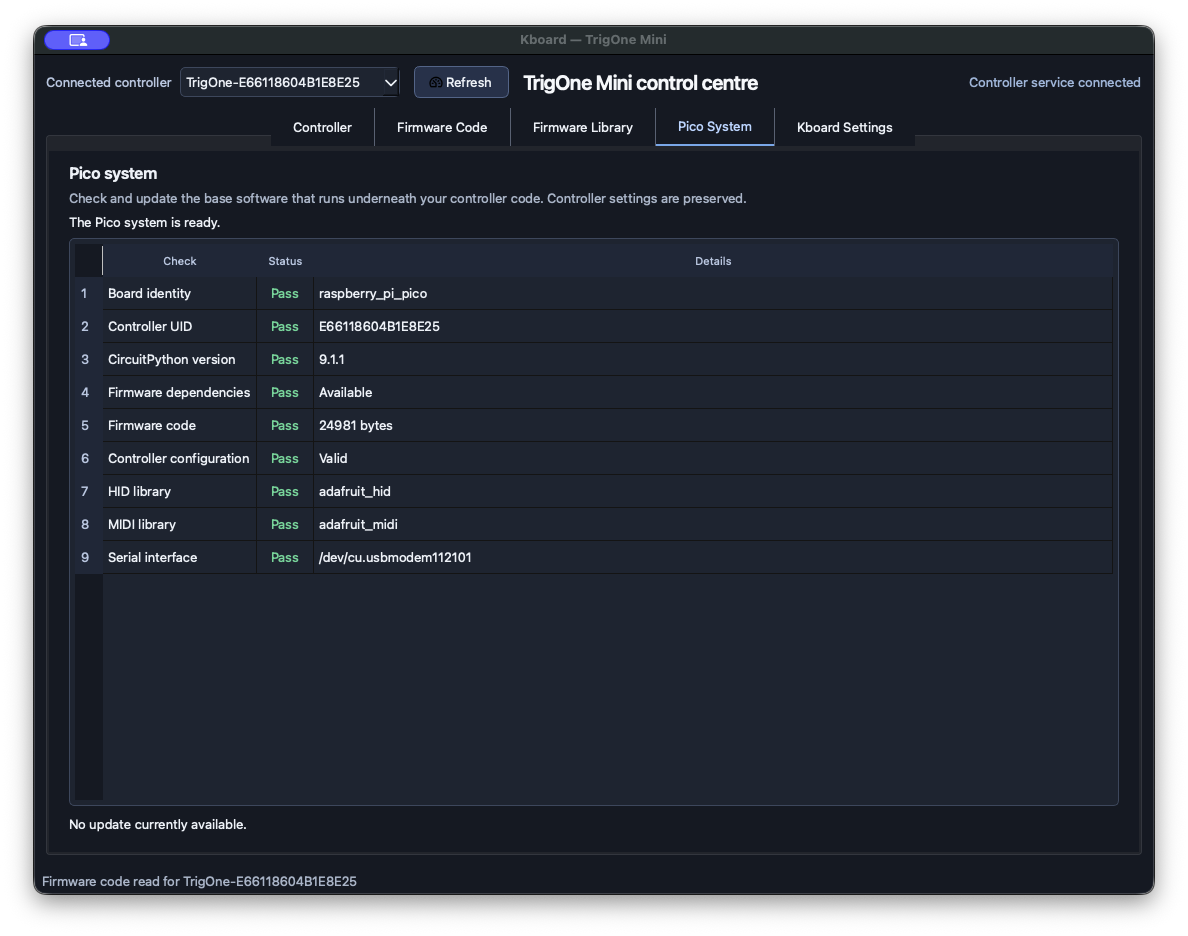
This tab checks the base software and libraries underneath your controller code. Kboard 0.1.0 includes no Pico system update or released BOOTSEL recovery workflow. No update currently available is therefore expected in this version. Do not format the controller drive as a troubleshooting step; contact support if it will not start.
08 / Connection and integration
Kboard Settings & MCP
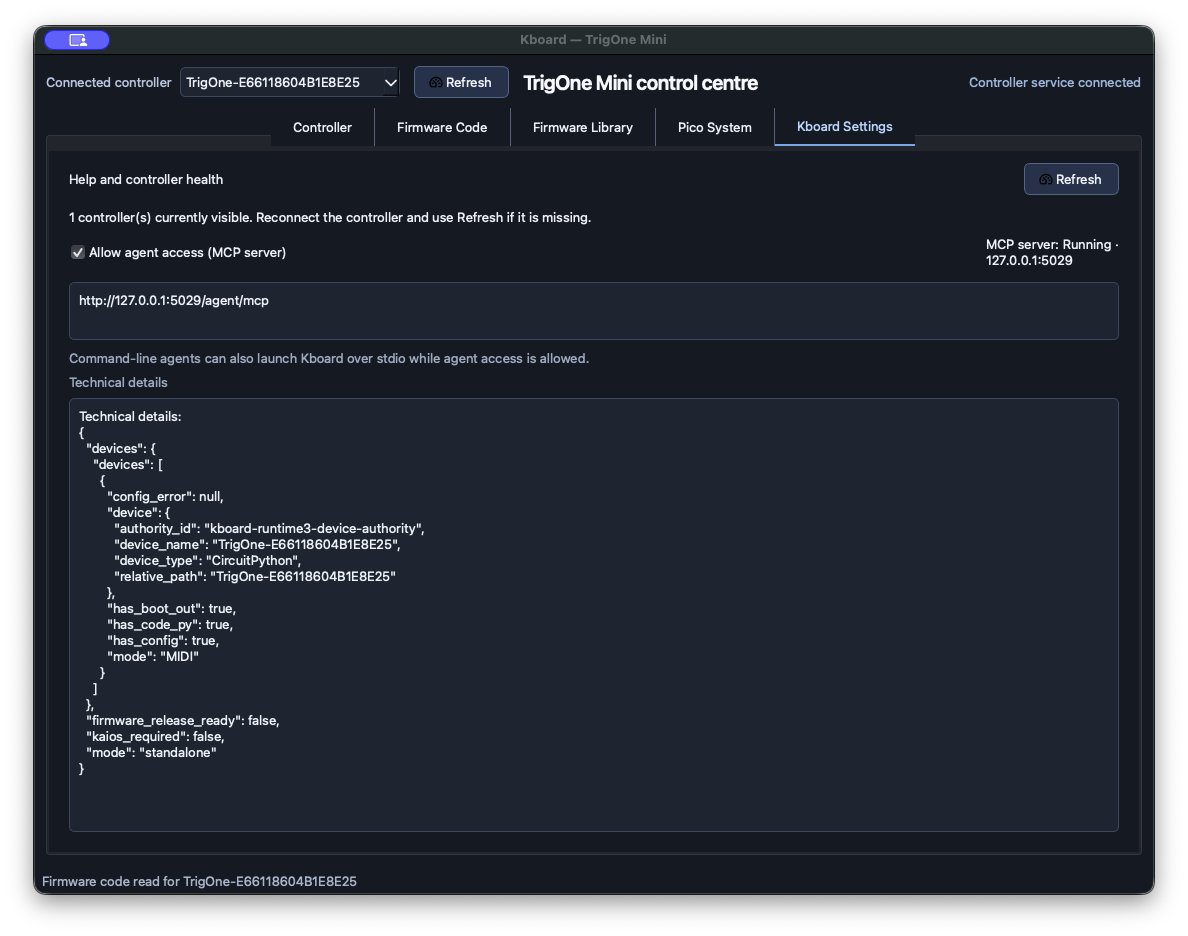
Kboard Settings shows connection health and the number of detected controllers. Allow agent access (MCP server) enables optional local agent integration. It is not required for normal MIDI or HID use.
Set up MCP for Codex and other local clients
Enable agent access in Kboard Settings. Prefer the bundled kboard-mcp command over stdio. This example uses the Apple Silicon app in Applications; adjust the app name to your actual installed copy. Intel uses Kboard-x86_64.app.
[mcp_servers.kboard]
command = "/Applications/Kboard-arm64.app/Contents/Resources/kboard-mcp"
args = []
Kboard uses the local keyring credential. The alternative HTTP address in Settings is loopback-only and requires authentication; the URL alone is insufficient. Do not copy credentials into configuration files. Agent access does not provide arbitrary shell execution or bypass device-change confirmation.
09 / FAQ
Answers for everyday use.
Does Kboard need to stay open?
No. A prepared controller runs its saved configuration itself. Use Kboard to change settings or inspect the device.
What is in the box?
TrigOne Mini, a USB cable and two blank, magnetically interchangeable wooden labels. Wood grain and small handcrafted details vary between units.
Why is my controller missing?
Check that the cable carries data. Connect directly to the computer, try another USB port and click Refresh. Also check whether the controller appears as a USB drive. If it remains missing, contact support.
Why does my DAW not respond?
Check that the live mode is MIDI, the DAW MIDI input is enabled, and its channel/CC mapping matches. Selecting a setting in Kboard’s editor alone does not apply it.
Why does HID affect the wrong app?
Keyboard shortcuts go to the foreground app. Activate the intended app and check the preset note. Use a media action when you need a supported media function instead of an app shortcut.
Why are Controller settings unavailable?
Kboard may have detected different firmware code. Check Firmware Code first. Custom firmware must support config.json; manually enabling settings does not add that support automatically.
What should I do after an uncertain save error?
Do not immediately repeat the write. Copy the status message, reconnect when instructed, and use Check Saved Code if offered. Contact support with the message.
Is Kboard free, and do I need an account?
Kboard for Mac is free to download without a Triggerpointed account. Optional MCP integration is not needed for normal use.
Is there a Windows app or OSC support?
Kboard 0.1.0 has no released Windows installer. The documented controller configuration covers MIDI and HID; OSC is not offered here.
How should I care for the wood?
Disconnect USB before cleaning. Use a soft, dry cloth and keep liquids, harsh cleaners and excessive heat away from the wood and electronics.
Still need help? Tell us your Kboard version, operating system, intended action and the exact status message. Contact support.